Send files between your phone and PC. No internet needed.
BitSwap moves files and chat messages over your local Wi‑Fi, straight from one device to another. Nothing goes through the cloud.
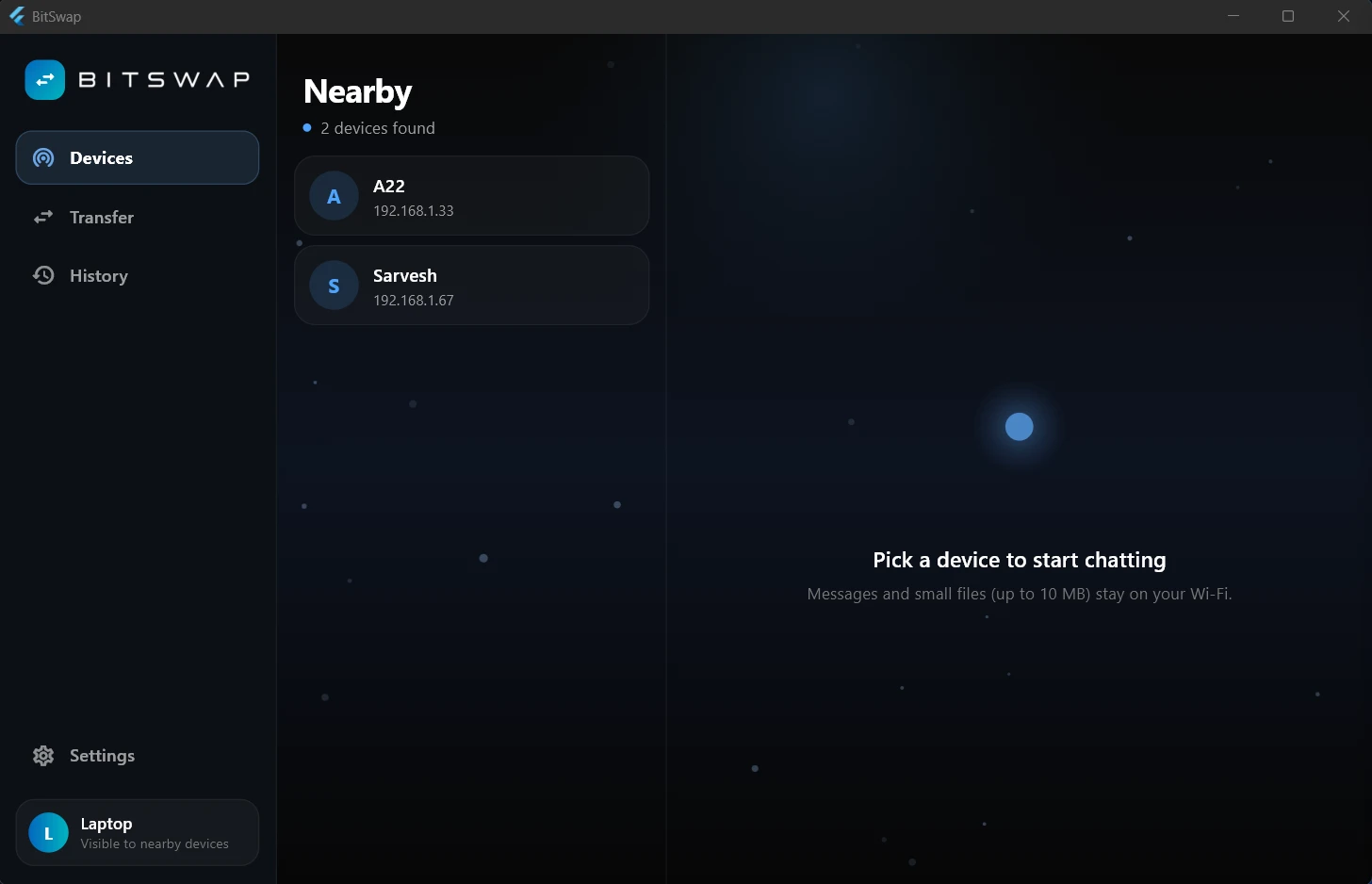
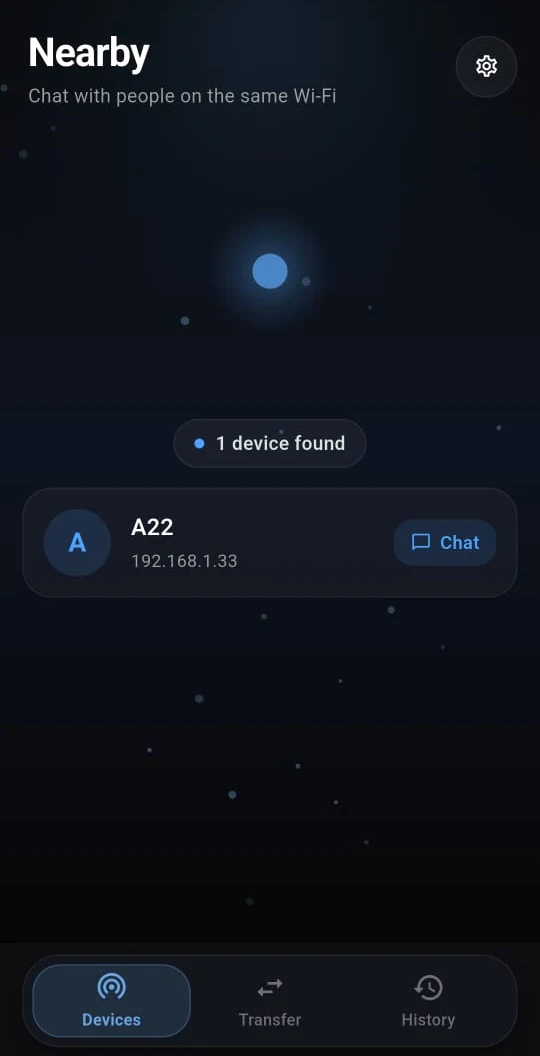
Everything you need to move files, nothing you don’t
Open the app on both devices, pick what to send, done.
Works without internet
Transfers run over your local Wi‑Fi. No mobile data, no uploads, no waiting on a server.
Android ⇄ Windows
Send from your phone to your PC and from your PC back to your phone. Same app, both directions.
Secure or Fast
Choose per transfer: encrypted for any Wi‑Fi, or unencrypted when you want maximum speed at home.
Verify with a code
Both devices show the same short code before anything is sent, so you know you’re connected to the right one.
Chat on the same Wi‑Fi
Message anyone nearby and share small files (up to 10 MB) right inside the conversation.
Transfer history
See what you sent and received, and when. Drag and drop files onto the Windows app to send.
Three steps. About ten seconds.
Join the same Wi‑Fi
Put both devices on the same network. A phone hotspot works too.
Pick a device and files
BitSwap finds nearby devices automatically. Choose one, then choose what to send.
Accept and match the code
The receiver accepts, both sides confirm the code, and the files start moving.
Find nearby devices
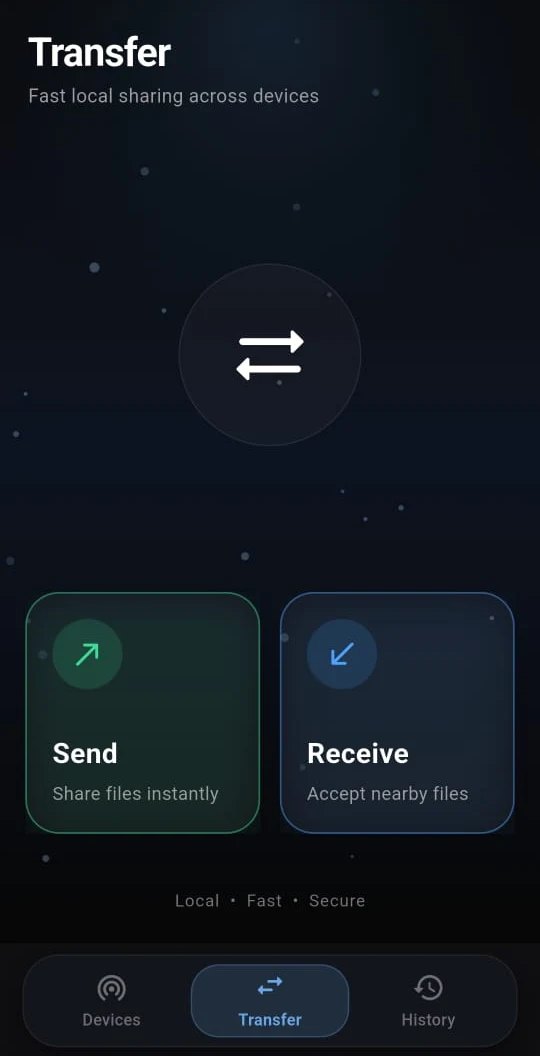
Send or receive
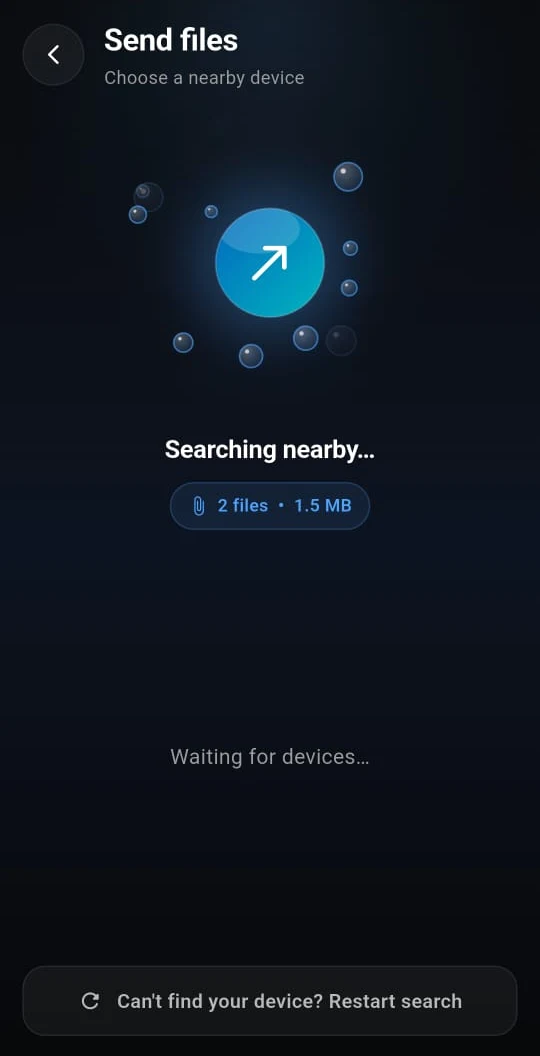
Choose where to send
You choose the trade‑off
The sender picks a mode for each transfer. The receiver sees it before accepting.
Secure transfer
Encrypted. Safe on any Wi‑Fi.
- Good for cafés, hostels, offices, shared networks
- Files are encrypted while they travel
Fast transfer
Not encrypted. Much faster on older phones.
- Best on your own home network
- Less processing, so big files move quicker
Get BitSwap on both devices
Install it on your phone and your PC, and you’re ready.
Windows
Windows 10 or 11, 64‑bit. Coming soon.
Coming soonThe Windows version is being verified with Microsoft so Windows doesn’t flag it by mistake. It will be available here soon.
Questions, answered
Do I need an internet connection?
No. Both devices just need to be on the same local network, like a home Wi‑Fi or a phone hotspot. The internet isn’t used for transfers.
My other device isn’t showing up. What do I do?
Check that both devices are on the same Wi‑Fi, then tap “Restart search”. On Windows, allow BitSwap through the firewall on private networks. Some public or guest Wi‑Fi networks block devices from seeing each other; a phone hotspot is a reliable fallback.
Where do received files go on Windows?
In your Documents folder, under Bitswap, in a sub‑folder named after the sender.
Which mode should I use?
Use Secure on any network you don’t fully control. Use Fast on your own home Wi‑Fi when you want the most speed, especially with older phones.
Why does Windows warn me when I install?
New apps from small publishers don’t have reputation with Windows SmartScreen yet. Click “More info”, then “Run anyway”.
Move your files the easy way
Fast, local and private. Get BitSwap on your phone and your PC.